Video Tutorial
A step by step guide to uploading and verifing an email list with No Más Rebotes. Download a checked list identifying which email addresses are undeliverable, risky or safe to send messages to.
Instructions
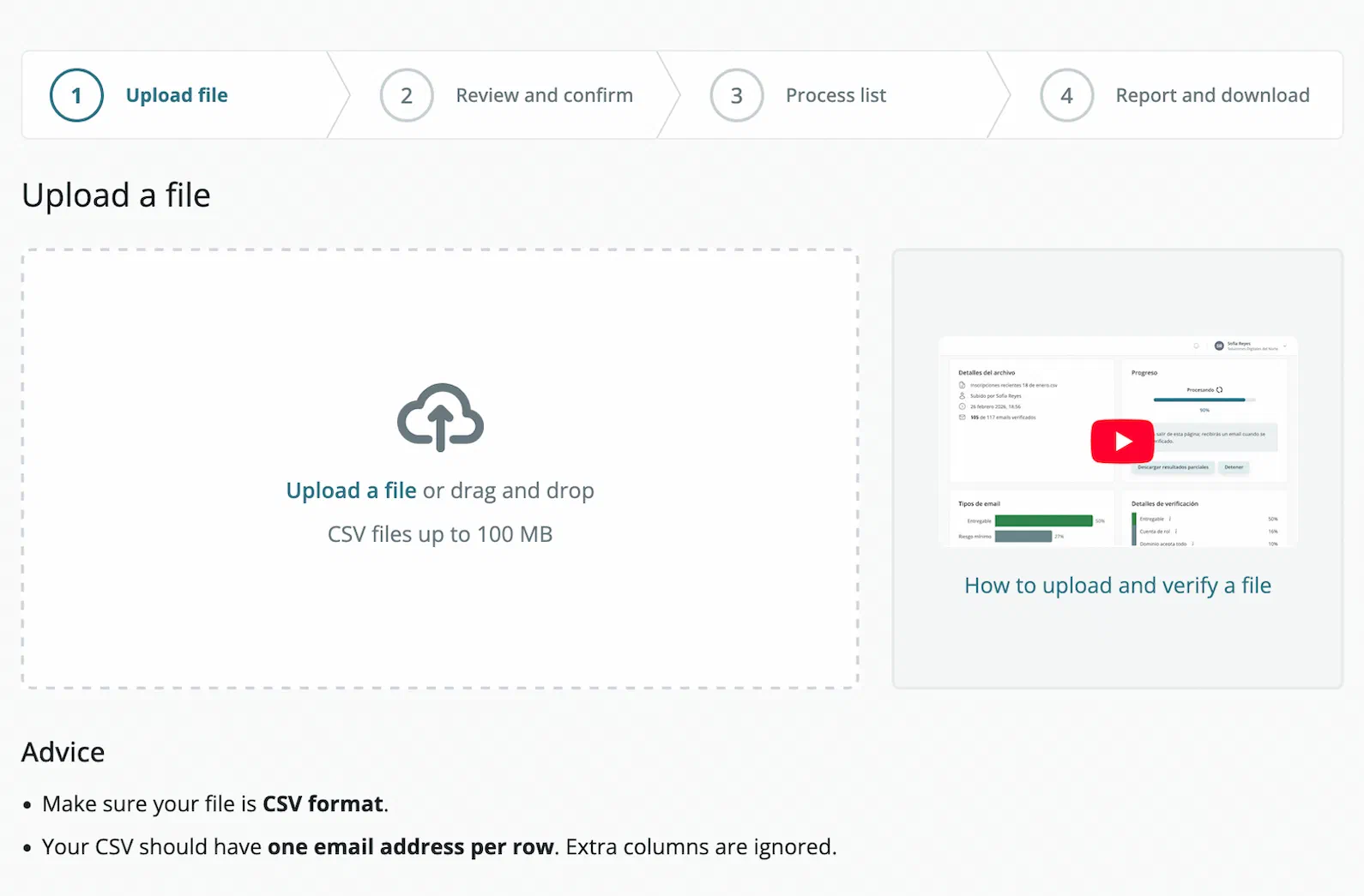
Upload a File
- Go to the files page and click Verify a file.
- Upload your file by clicking Upload a file or by dragging and dropping it into the upload area.
- Your file must be in CSV format and include a column of emails. Additional columns are allowed but will be ignored during verification.
- Once uploaded, you’ll see a preview of the first few rows and some file details. You can rename the file if needed.
- Click Start verification to begin processing your file.
Verify File
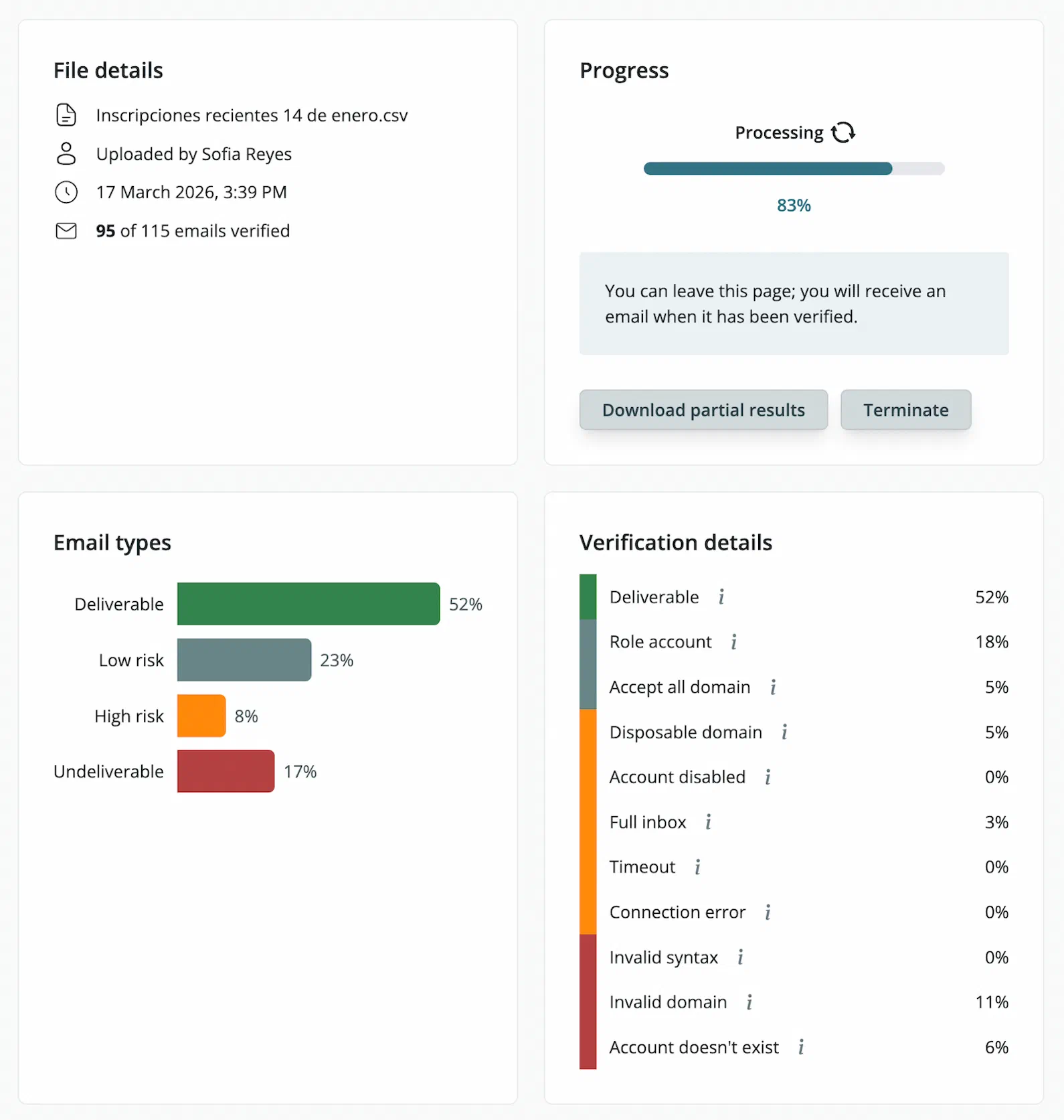
- You can view results as they become available. Verification will continue in the background even if you leave the page.
- The percentage of your file that has been verified is displayed along with a breakdown of email types in your file. Click the i icon to learn more about each email type.
- Individual email results appear at the bottom of the page.
- You can download results at any time, including while verification is still in progress.
- When verification is complete, you’ll receive an email notification.
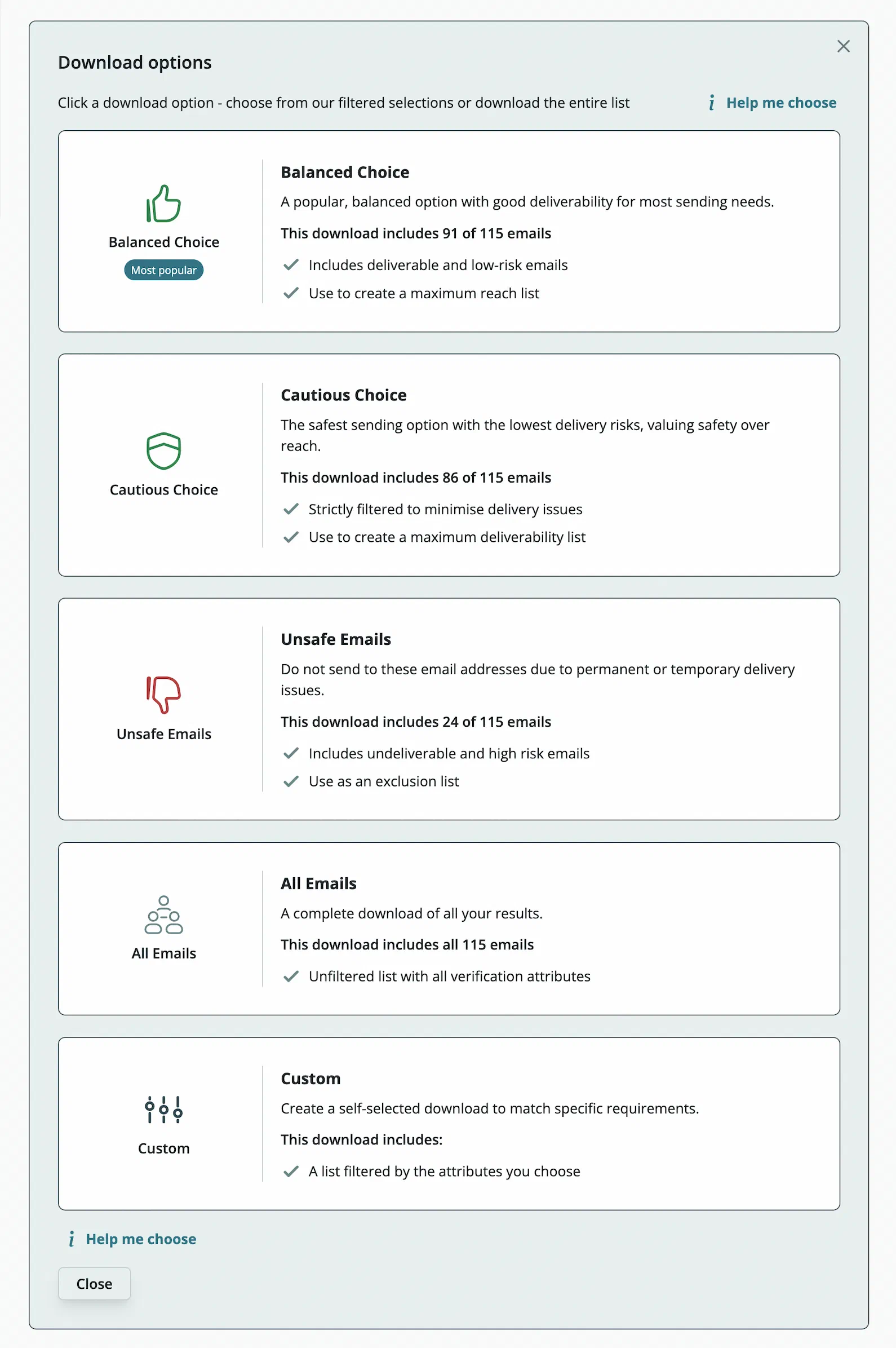
Download Results
- Click Download results.
- Choose from five download options, ranging from pre-packaged downloads to custom selections. Each option includes information about the number of emails included and common usage.
- For help choosing, view the guide here. The balanced option is our most popular choice and includes deliverable and low risk emails.
- A confirmation pop-up will appear. You can choose to exclude duplicate records.
- Click Download CSV to save your file. You can download your results as many times as you like and try different download options.
- After 30 days, the file will be automatically deleted in accordance with our privacy policy.
- Use your downloaded list to send campaigns with confidence and avoid damaging emails.